

Report Print Preview buttons
Jul 09, 2018Have you ever wondered what all those buttons do in your Print Preview of XLDent reports? Here's a quick guide to them and how they can be helpful:
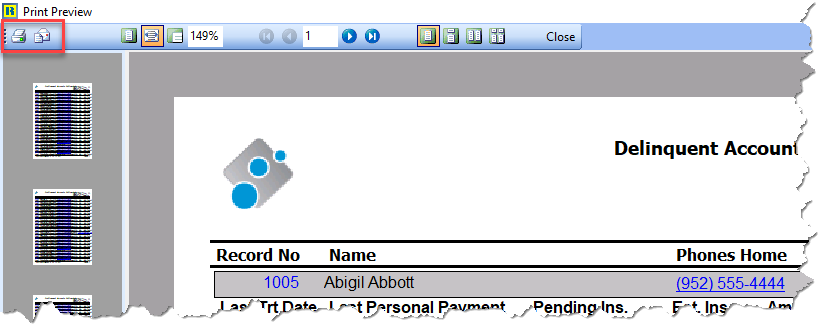
- Print: Print the report being viewed. In here, it can also be Printed to a File. Save a digital copy of it as a PDF, XLS, or more.
- Email: Need to email a letter to a patient or send something to the accountant? Email a PDF copy of this report easily with one click.

- Whole Page: View the entire page of the report or letter on the screen.
- Page Width: Zoom in on the report to fit it across the width. This view is great for seeing about half the report at a time (and scroll up and down to see the rest).
- 100%: Zoom in to 100% report size.
- Custom %: Set the view to any percentage you want to zoom in or out of the report preview.
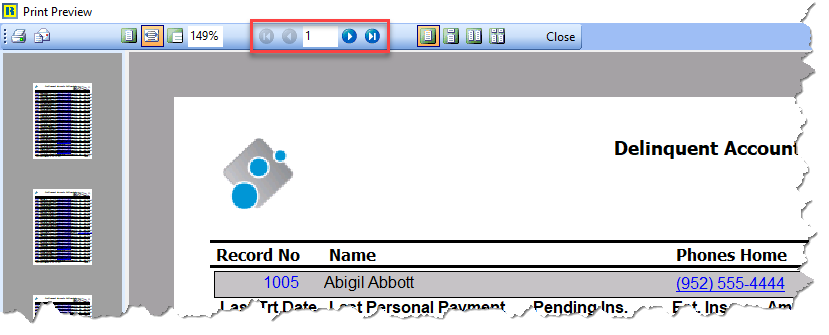
- First/Last Page: Quickly go to the first or last page of the report.
- Prior/Next Page: Quickly go through pages of the report. Also use the thumbnails on the left to select any page to view.
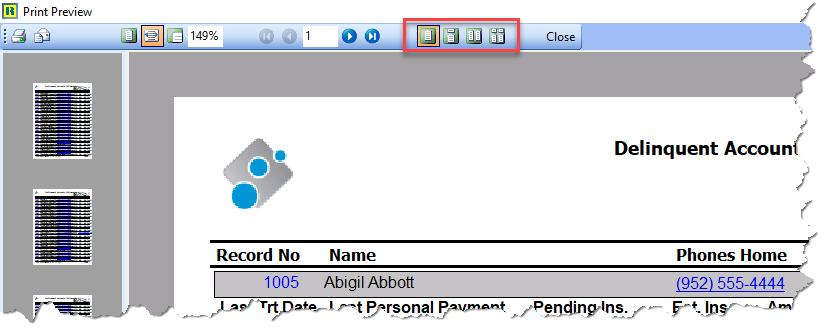
- Single Page: View one page at a time on the preview. To move between pages you must use prior/next buttons or thumbnails.
- Continuous: Pulls all pages into the preview to allow for continuous scrolling from one page to the next.
- Two Up: View two report pages side-by-side.
- Continuous Two Up: View two report pages side-by-side with subsequent pages available for continuous scrolling.


Automates key business processes to help you manage your practice more profitably and efficiently.


An innovative treatment Chart which allows for all information to be displayed on one screen for easy viewing.


Stores images from any digital imaging device and integrates them seamlessly to each patient's chart.


Facilitates unattended patient check in and forms completion via a Tablet PC.


Patient and Doctor Portals provide secure internet-based access to the information they want, when they want it.


Interoffice communication finally made simple with instant messaging.


This flexible, easy to use program tracks employee hours effortlessly. Simple to install on one or multiple computers.


All eSolutions are directly integrated with your XLDent Suite to improve workflow, accuracy, and eliminate redundant entry.
Getting Started


nEWS & aNNOUNCEMENTS view blog